Content
Step by Step guide to manage AudioBooks in Plex and PlexAmp
Create a Dedicated Audiobook Folder on Your NAS
The first and most important step is organization.
On your NAS (or server), create a dedicated folder exclusively for audiobooks. Do not mix them with your music.
For example:
/media/audiobooks/
All audiobook files should be stored inside this directory, ideally structured by author and book:
Audiobooks/
 ├── George Orwell/
 │    └── 1984/
 │         ├── 01.mp3
 │         ├── 02.mp3
 ├── Frank Herbert/
 │    └── Dune/
Why this matters:
Audiobooks must never be mixed with your regular music collection. Plex treats music and audiobooks differently, and mixing them can cause metadata issues, playback problems, and loss of progress tracking.
Create a Dedicated Audiobook Library in Plex
Once your audiobook folder is ready, open Plex Media Server and create a new library:
- Go to Settings → Libraries
- Click Add Library
- Select Music as the library type
- Name the library clearly (e.g. Audiobooks)
- Point the library to your audiobook folder on the NAS (in our example /media/audiobooks/)
Important (I repeat to make sure it is clear !):
Do not add audiobooks to your existing music library. Audiobooks must always live in their own dedicated library.
Configure Advanced Library Options (Critical Step)
After creating the audiobook library, you must adjust its advanced settings:
- Open your Audiobook library
- Click Edit Library
- Go to Advanced Settings
- Enable the option: “Store track progress”
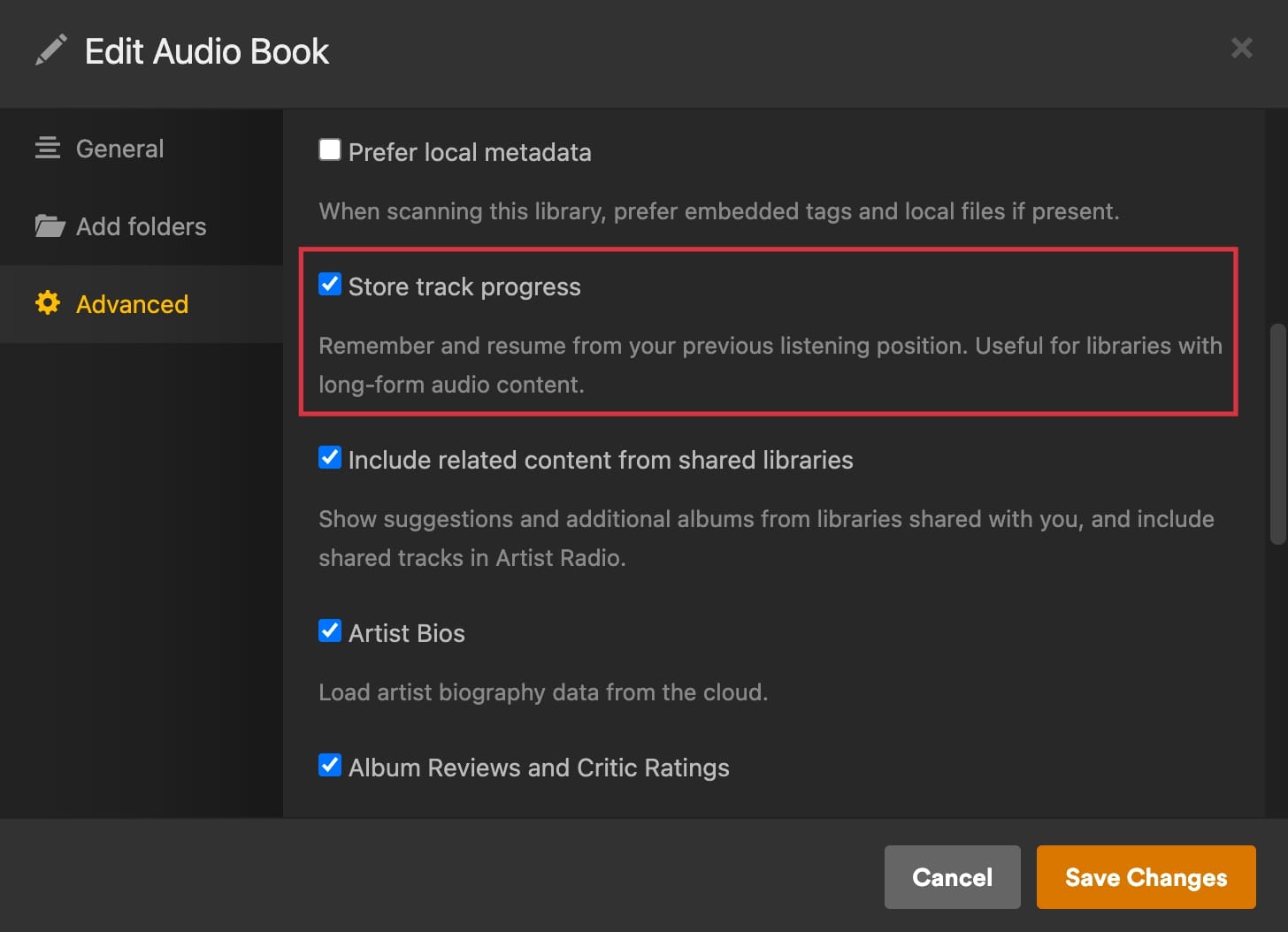
This option is absolutely essential to continue playing your audio books from the left off.
Why “Store Track Progress” Is So Important
Audiobooks are long-form content. Without progress tracking, Plex will always restart playback from the beginning.
Use the Plex Built-in Store Track Progress Feature
By enabling Store track progress, Plex will:
- Remember where you stopped listening
- Resume playback exactly where you left off
- Sync progress across devices
- Work perfectly with PlexAmp
This single option transforms Plex from a simple music player into a true audiobook platform.
Using Audiobooks with PlexAmp
PlexAmp works particularly well with Plex audiobooks when the library is correctly configured:
- Automatic resume playback
- Reliable chapter navigation
- Persistent listening progress
- Ideal for long listening sessions
As long as your audiobooks are stored in a dedicated library with progress tracking enabled, PlexAmp will behave exactly as expected.
Best Practices Summary
- Create a dedicated audiobook folder on your NAS
- Never mix audiobooks with music
- Create a separate Plex library for audiobooks
- Enable “Store track progress” in advanced settings
- Use PlexAmp for seamless audiobook playback
Conclusion
Plex can be an excellent audiobook manager, but only if it is configured properly. The key principles are separation and progress tracking.
By following these best practices, Plex and PlexAmp become a powerful, reliable, and user-friendly audiobook solution across all your devices.